How To Plan A Connected Home Setup That Works Without A Complicated App Stack
A practical step-by-step guide to how to plan a connected home setup that works without a complicated app stack, including preparation, instructions, common issues, tips, and next steps.
How To Plan A Connected Home Setup That Works Without A Complicated App Stack
Planning a connected home without a complicated app stack means choosing devices and a hub that work together seamlessly, focusing on simplicity and reliability. This guide walks you through a practical, step-by-step approach to design a smart home system that integrates smoothly, minimizes app overload, and keeps control in one place. You'll learn how to assess your needs, select a compatible ecosystem, set up a central hub, configure routines, manage security, and plan for future expansion—all while avoiding the pitfalls of fragmented apps and overly complex automation.
Fast Answer
- Start by defining your essential needs and choose a single hub that connects to all your devices; this avoids juggling multiple apps.
- Pick devices that support a common open standard like Matter or Zigbee, so they work together without company-specific apps.
Before You Start
- List the rooms and tasks you want to automate, such as lighting, climate control, security, or entertainment, and prioritize which matter most.
- Decide on a budget and prefer devices that use open protocols over proprietary ones, since open protocols make integration easier.
- Check your home's Wi-Fi strength and plan to use a mesh system or dedicated network for IoT devices to ensure reliable connections.
- Research compatible devices and choose a hub that supports your chosen protocol and works with your smartphone or voice assistant.
Step-by-Step Instructions
Assess Your Automation Needs and Priorities
Begin by walking through your home and noting every task you'd love to automate. Do you want to turn lights off from bed? Adjust a thermostat based on time of day? Get alerts when doors open? List your must-haves and nice-to-haves, then rank them. This list becomes your blueprint. You should also consider your daily routines and family habits. For example, if you often forget to lock the front door, prioritize a smart lock. If you like cozy lighting for film nights, think about dimmers. After you've listed everything, set aside what you truly need versus what is just a curiosity. That way, you avoid spending on gadgets that won't improve your life. Finally, choose only your top three to five purposes for the initial setup, because that will keep the project manageable and not overwhelming. This prioritization ensures your connected home genuinely serves you rather than becoming a tech burden.
Choose a Single Open-Standard Hub
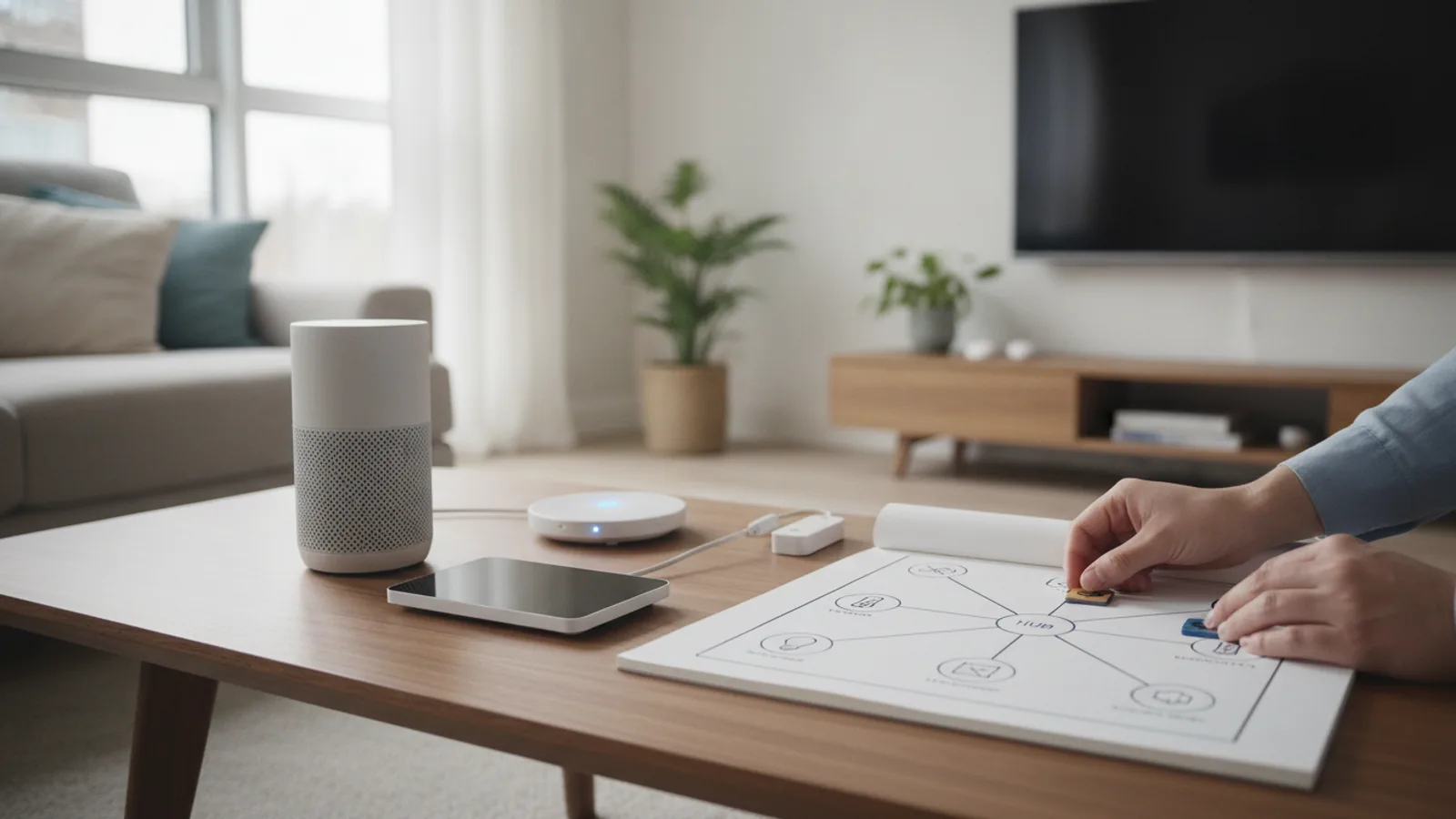
A hub is the brain of your connected home, and selecting one is the most important decision. Look for a hub that supports Matter, Zigbee, or Z-Wave, and avoid one that leans heavily on a single manufacturer. A common open hub can talk to a wide range of devices, so you won't need multiple apps. When examining options, focus on ease of setup, local control, and integration with your voice assistant. Some hubs rely on cloud services; these can become slow or fail when the internet goes down. For reliability, choose a hub that can run automations locally, so it works even if the internet is absent. Also, check how many devices the hub can handle. Since you'll likely add gadgets later, pick one with ample capacity. Finally, read the hub's documentation to confirm that it supports the exact devices you plan to buy, and if not, adjust your device list. This decision prevents future app chaos.
Select Devices That Speak the Same Protocol
Now shop for devices with one eye on protocol compatibility. Prefer items that list Matter, Zigbee, or Z-Wave on their box. If a device relies on a proprietary bridge or its own cloud service, it might still work with your hub, but often with restrictions. For example, a proprietary camera may not give you local recording or may require a monthly subscription. Instead, choose devices that integrate directly with your chosen hub. Also, consider the power source: battery-operated sensors are flexible but need periodic battery changes. For permanent installations, hardwired devices are more reliable. When you buy, think about the future: can this device support new features via firmware you update? Some brands are better that others. You'll also want to check that each device can be controlled locally by the hub, not just via the cloud. That way, your network stays fast and private. In the end, sticking to one protocol makes setup simpler and automations more robust.
Set Up Devices and Add Them to the Hub
When you bring your devices home, resist the urge to install them all at once; do it one by one. Start by placing the hub in a central, open location away from thick walls and metal objects. Plug it in and follow the hub's pairing instructions. Typically, you'll put a compatible device into pairing mode by pressing a button and then letting the hub discover it. Give each device a clear, meaningful name, such as 'Front Door Lock' or 'Living Room Dimmer,' because you'll use these names in automation. After pairing, test each device from the hub's app or via a voice command. If a device fails, check that it's within range or that you didn't accidentally pair it to another hub. Once all are connected, you can group them into rooms—like 'Upstairs' or 'Kitchen'—to manage them together. This systematic pairing approach avoids confusion and lets you verify each node can see others.
Create Simple Automations and Routines
With your devices connected, build automations that reflect your daily life. Begin with one rule, like 'turn on porch light at sunset' or 'lock the door at 10 pm.' Most hubs have a section called Automations or Scenes. In that interface, you choose a trigger: time, sensor motion, or device status—and then decide what the hub should do. Keep automations simple initially: one trigger, one action. For example, set living room lights to turn on 30 minutes before sunset. After that works, add a condition, like 'only when no one is home.' Test each automation for a few days to see if the timing feels right. Then gradually add more, but avoid stacking too many triggers on the same action, because that can cause surprises. Also, consider using scenes, which set multiple devices at once, such as 'Movie Night' that dims lights and turns on the TV. This step is where your home starts to feel genuinely smart.
Verify Security and Plan for Future Expansion
Your smart home is only as safe as its weakest link. First, change the default passwords on every device and when possible, enable two-factor authentication on your hub and any companion app. Use a separate network for IoT devices if your router offers that; it keeps them isolated from your main computers. After that, routinely check for firmware updates for each device, and apply them right away, because they often patch security holes. Also, share access only with family members you trust, and review who has permissions. Look at your hub's activity logs sometimes to see if anything odd happens. Finally, as your family grows, think about how to add more devices: buy only those that are compatible with your current hub, and avoid starting a second ecosystem. Keep a careful list of every device and its password, so you can manage them and hand over to the next owner if you move.
Quick Reference
| Situation | Action | Why it helps |
|---|---|---|
| You've bought a new smart light bulb and want to connect it to your existing system. | Open the hub's app, enter pairing mode on the bulb (often by flipping the switch on and off), and then add it using the hub's 'add device' option. | This ensures the bulb uses your central hub instead of its own cloud service, keeping everything controlled from one app and simplifying your setup. |
| Your smart lock is not responding to commands from the hub, but it works from its own supplier app. | Delete the lock from the hub, refresh the hub's firmware, and try pairing it again while following the lock's pairing guide exactly as described. | A fresh connection often resolves firmware glitches or pairing conflicts, and it re-establishes local control so the lock works even if the supplier's cloud is unreachable. |
| You want to set up a 'Goodnight' scene that locks doors, turns off lights, and adjusts the thermostat. | In the hub's app, go to Scenes or Routines, create a new scene named 'Goodnight,' select the devices, and assign the specific state for each, then test it. | Scenes let you trigger multiple actions with one voice command or press, which reduces manual effort and ensures consistency across all rooms. |
Common Issues
- A device drops offline from the hub frequently.: Check the device's distance from the hub and move it closer, add a Zigbee/Z-Wave range extender, or replace the batteries if they're low. Also, ensure the hub's firmware is up to date.
- The hub's app shows a device as 'unavailable,' but the device works when controlled through its own app.: Reset the device by removing it from the hub and rebooting the hub, then add the device again from scratch. Verify that the hub supports your device's specific model and firmware.
- Automations work sometimes but not always, like a lamp not turning on at sunset.: Check the automation's trigger settings: ensure the sunset offset is correct and that the device is grouped under the right 'room.' Also, confirm the hub's timezone is set correctly.
Advanced Tips
- Consider using a Zigbee-to-Matter bridge to connect older Zigbee devices to your Matter hub, but understand that bridging may limit some advanced features of older devices.
- Set up your hub to run automations locally, not in the cloud, to reduce latency and improve reliability when internet hiccups occur.
- Use a guest mode on your hub to temporarily give visitors control of certain devices without exposing your entire smart home system to them.
Final Checklist
- Does my hub support an open standard like Matter, Zigbee, or Z-Wave, and have I checked that each device is compatible with that hub?
- Have I changed default passwords and enabled two-factor authentication on my hub and associated apps?
- Is my hub placed in a central and unobstructed spot, and have I tested the range for all battery-powered devices?
- Have I created at least one routine that runs without my manual initiation, and is the timezone and schedule correct?
FAQ
Can I mix devices from different manufacturers if I have a hub that supports Matter?
Yes, if you choose a hub that supports Matter, you can mix compatible devices from any company, as long as they all carry the Matter logo. However, check that each device's firmware is updated to support Matter; some older devices may need a bridge. Also, confirm that all devices are on the same Wi-Fi network or use the same protocol (like Zigbee) to ensure reliable communication.
What if my internet goes down, will my smart home still work?
If your hub supports local control, your devices and automations can continue working even without internet. This means you can still use switches, sensors, and timers, as long as the commands are processed locally. However, voice assistants that rely on the cloud may not respond during an outage. To maximize reliability, choose a hub that offers local processing and avoid cloud-only devices.
How many devices can I connect to one hub before performance suffers?
The limit varies by hub; some can manage dozens, while others handle over a hundred, but performance can degrade as you reach the limit. Check the manufacturer's specification for the maximum number of paired devices. To prevent lag, keep your device count below 80% of that limit, and also consider the network bandwidth your devices use. If you have many devices, separate them between a Wi-Fi and a Zigbee mesh, but always control them from the same hub.