How To Design A Voice Controlled Smart Home System
A practical step-by-step guide to How to design a voice-controlled smart home system, including preparation, instructions, common issues, tips, and next steps.
How To Design A Voice Controlled Smart Home System
This guide provides a step-by-step approach to designing a voice-controlled smart home system from concept to implementation. It covers selecting a central hub, choosing compatible devices, setting up voice assistants, creating routines, ensuring network reliability, and troubleshooting common issues. The focus is on practical, vendor-neutral advice that emphasizes planning, security, and user experience.
Fast Answer
- Start by defining your needs: list which devices you want to control, such as lights, thermostats, or locks, and consider the size of your home and the number of users.
- Choose a central voice assistant platform that works with a wide range of devices, then gradually add compatible smart devices, grouping them into rooms for easier voice commands.
Before You Start
- Create a list of all devices you want to control, noting their locations and whether they need a hub or use Wi-Fi directly.
- Ensure your home Wi-Fi network has strong coverage, especially in areas where you'll place smart devices; consider a mesh system if needed.
- Read the manuals for your chosen voice assistant and smart devices to understand their setup procedures and compatibility requirements.
- Decide on a naming convention for your devices and rooms, such as 'living room lamp' instead of 'lamp 1', to make voice commands intuitive.
Step-by-Step Instructions
Plan Your Smart Home System Architecture
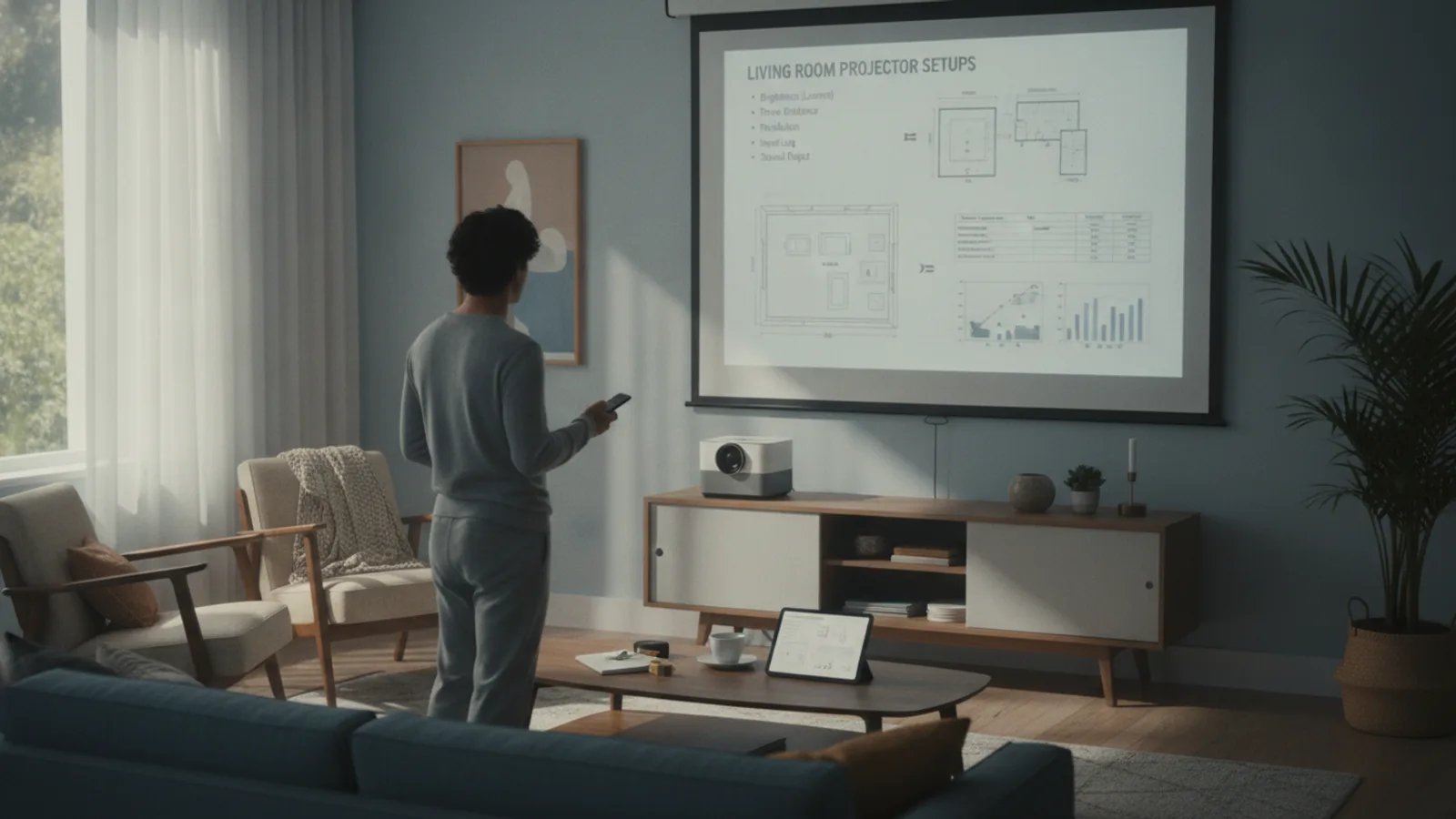
Begin by sketching a floor plan of your home and marking the location of every electrical outlet, light switch, and fixture you intend to control. For each, decide whether you want on/off control, dimming, color changes, or scheduling. Also list any sensors like motion or door sensors that could trigger automations. Consider whether devices will be wired directly into existing switches (like smart light switches) or plug into outlets as smart plugs. Determine if you need a central hub or if your chosen voice platform can communicate directly with devices via Wi-Fi. Research the typical communication protocols (like Zigbee or Z-Wave) that may require a hub for reliability. After completing your plan, purchase a single starter kit – such as a smart speaker with a built-in hub and two smart plugs – to test the system. This initial test will validate your assumptions about coverage and compatibility before you invest in more devices.
Set Up Your Central Voice Hub
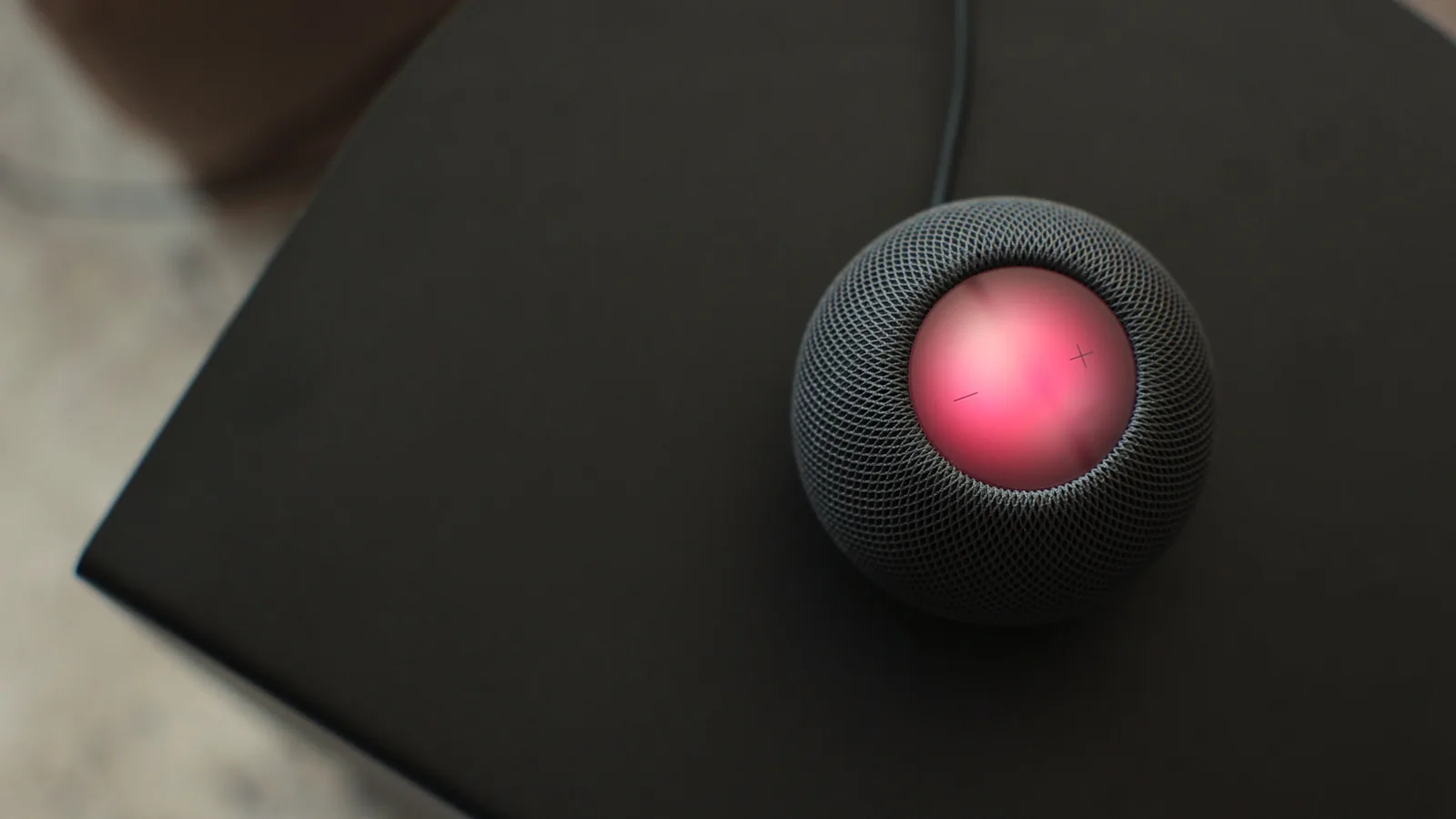
Unbox your smart speaker or voice assistant device and plug it into a stable power source in a central location, ideally in a common area like the living room. Download the companion app for that platform on your smartphone and create an account or sign in. Follow the in-app instructions to connect the voice assistant to your home Wi-Fi network, and ensure the router’s 2.4GHz band is enabled because many smart speakers only work on that frequency. Position the device at least one meter away from walls and large metal objects to prevent audio interference. After the device connects, train the voice assistant to recognize your voice by following the enrollment prompts, speaking naturally. This step is vital because it allows the assistant to distinguish between different household members, which is essential for personalized routines and security. After setup, run a sound test by asking the assistant to read the weather or play music, verifying that the volume is appropriate and that it responds accurately from across the room.
Install Your First Smart Devices
Start with the simplest devices: smart plugs. Plug one into an existing wall outlet near a lamp or small appliance. Using the app for your smart plug, follow the pairing process: put the plug into pairing mode (usually by pressing a button or scanning a code), then wait for the voice assistant app to discover it. When prompted, assign the device to a specific room and give it a clear, descriptive name like 'desk lamp' instead of a generic label. After adding one plug, test voice control: say, 'Turn on the desk lamp,' and check that it responds. Repeat this process for each new device, but add them one at a time to avoid confusion. If you encounter a device that refuses to pair, check that the device and your phone are on the same Wi-Fi network, and consult the manufacturer's manual for troubleshooting. Learning the pairing procedure with a simple device will make it easier to set up more complex devices like thermostats later.
Group Devices and Create Scenes
Open the companion app and find the section to create groups or rooms. If you haven't already, organize your devices into rooms like 'Living Room,' 'Kitchen,' and 'Bedroom.' This allows you to issue commands like, 'Turn off all lights in the living room,' instead of controlling each device individually. Then, create scenes, which are collections of devices set to a specific state. For example, create a 'Movie Night' scene that dims the living room lights to 20% and sets the TV input to your streaming media player. To create a scene, go to the Automations or Scenes tab, choose a trigger (either manual or scheduled), and then select the devices and their desired states. Test each scene by running it manually from the app first, then using voice: 'Activate Movie Night.' If a scene doesn't work perfectly, check that every device in it is responsive and that their states are correctly set. Scenes reduce the number of commands you need to give for routine activities.
Build Routine Automation Triggers
Routines are sequences of actions that run automatically based on triggers like time, sensor activity, or your voice command. In the voice assistant's app, navigate to the Routines or Automations interface. Create a routine named 'Bedtime' that runs at 10:00 PM every night: set action to turn off all lights, lock smart locks, and set the thermostat to a lower nighttime temperature. Ensure that the routine includes only devices that are currently set up and in a working state. Also, create a routine triggered by a motion sensor, such as turning on a hallway light at night when motion is detected, but only between sunset and sunrise. Test each routine by temporarily shortening the delay or simulating the trigger. For example, you can manually trigger a routine from the app to see if all actions execute correctly. If a step fails, check that the device is online, the condition (like time) is correct, and that there are no conflicting automations. Relying on automatic triggers can make your home feel responsive and efficient.
Test, Refine, and Expand Your System
Once your initial devices are set up, spend a few days using the system exclusively with voice commands. Take notes on any commands that fail or take too long to execute. Review the voice assistant's history log to see exactly what it heard and how it interpreted your commands. Based on this, refine device names and routine phrasing to reduce confusion. For example, if your assistant often mishears 'turn on the left lamp' as 'turn on the lift lamp,' rename it to 'floor lamp.' Additionally, check the sensitivity of voice recognition in different rooms; you may need to adjust the assistant's microphone settings or add an extra speaker in a frequently used area. Continue by adding more devices, but always test each new device’s interaction with existing routines and voice commands. As your system grows, consider implementing more advanced automations, such as involving occupancy sensors to turn off lights when no one is in a room. Regular testing and refinement are crucial to keep the system running reliably.
Quick Reference
| Situation | Action | Why it helps |
|---|---|---|
| A new smart device does not show up in your voice assistant's app after pairing. | Restart the voice assistant device and the smart device, then attempt to pair them again with the app, making sure both are on the same 2.4 GHz Wi-Fi network. | Restarting clears temporary glitches, and using the 2.4 GHz band ensures compatibility because many smart devices do not support 5 GHz networks. |
| Voice commands work sometimes but fail when the room is noisy or when you are far away. | Check the assistant's microphone settings and adjust its sensitivity, or add a second smart speaker in the room for better coverage. | Microphones have limited range and may pick up background noise, so repositioning or adding speakers improves voice recognition reliability. |
| You want to set a routine that turns on the lights at sunset, but the time differs daily. | In the routine scheduler, choose the option 'Sunset' as the trigger, and enable the location permission for the voice assistant to calculate sunset times based on your home address. | Using location-based sunset times automatically adjusts for seasonal changes, saving you from manually updating the schedule. |
Common Issues
- Voice assistant often mishears device names, especially those with similar sounds like 'light' and 'right'.: Rename problematic devices using distinct words, like 'lamp one' instead of 'left light,' and retrain the voice model if possible. Also, avoid using homophones in device names.
- Automations sometimes fail because a device is temporarily offline or unresponsive.: Check the device's connectivity to your Wi-Fi and power source. If the issue persists, consider moving the Wi-Fi router or adding a range extender to strengthen the signal in the area where the device is located.
- Multiple users in the household are getting different responses from the voice assistant, causing confusion.: Ensure each user has their own voice profile enabled and trained, then link the voice assistant to each person's account so personalized settings are applied. If voice recognition isn't available, use a single shared profile but simplify routines.
Advanced Tips
- Integrate smart home devices with condition-based logic, like turning on a fan if the temperature exceeds a threshold and the room is occupied, to create more responsive environments.
- Use voice commands to adjust scenes in real-time, such as saying 'Increase brightness' during a movie scene, and train the assistant to maintain the last scene state.
- Leverage voice assistant routines that send you a morning briefing with the day's calendar, weather, and a status report of all your smart home devices, so you can quickly spot any issues.
Final Checklist
- Verify that every smart device is reachable by the voice assistant and responds correctly to its exact name.
- Test each routine trigger manually and with the voice command to ensure all actions occur in the intended order.
- Confirm that all household members have set up voice profiles and that privacy settings restrict unauthorized voice actions.
- Document the system: list devices, room assignments, scene names, and routine schedules in a local file for future troubleshooting.
FAQ
Do I need to be tech-savvy to set up a smart home system?
Not necessarily, but you do need to follow instructions carefully. Most devices have companion apps that guide you through setup. Start with a small system, like one speaker and a few smart plugs, and learn the basics before expanding. If you can use a smartphone app, you can set up a basic system.
Can I use voice control with my existing regular devices?
Yes, if they can be plugged into smart plugs or controlled by smart switches that replace your existing wall switches. For example, you can turn lamps and small appliances on and off with a smart plug. For larger appliances like air conditioners, you may need a smart IR blaster or a specialized plug with energy monitoring.
What if I lose internet connectivity? Do my devices still work?
Voice assistants typically require an internet connection to process commands because they rely on cloud services. However, some basic local controls might work if your voice assistant has a hub with local processing. For non-voice controls, you can often use the physical buttons on the devices or the app if it supports local network. To be safe, check your specific hardware's local control capabilities.