How To Design A Connected Kitchen With Smart Appliances
A practical step-by-step guide to How to design a connected kitchen with smart appliances, including preparation, instructions, common issues, tips, and next steps.
How To Design A Connected Kitchen With Smart Appliances
Designing a connected kitchen with smart appliances means planning how your devices will work together before you buy or install them. This guide walks you through mapping your needs, checking your home network, setting up a central control method, and testing everything so that your kitchen becomes more convenient, efficient, and enjoyable.
Fast Answer
- Start by listing what you want to automate or monitor, such as lighting, cooking, or food storage.
- Choose a central control method that fits your habits, then add devices that can work with it.
Before You Start
- Make a list of kitchen tasks you want to simplify or monitor, such as preheating the oven, checking the fridge, or controlling lights.
- Check your home internet connection and Wi-Fi coverage in the kitchen; weak signals can cause devices to disconnect or respond slowly.
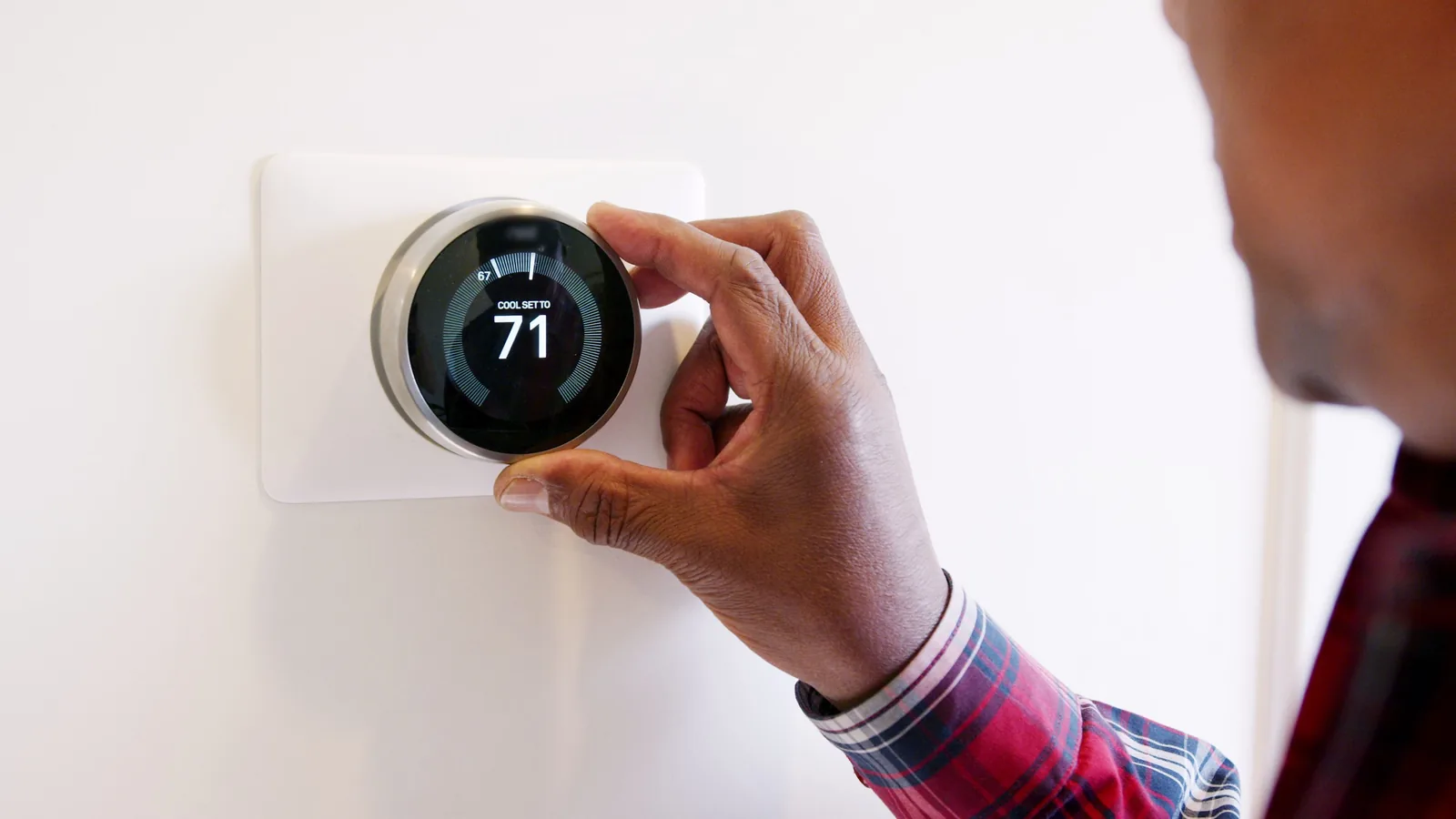
- Decide on a central control method, such as a mobile app, voice assistant, or wall panel, that you will use to manage all devices.
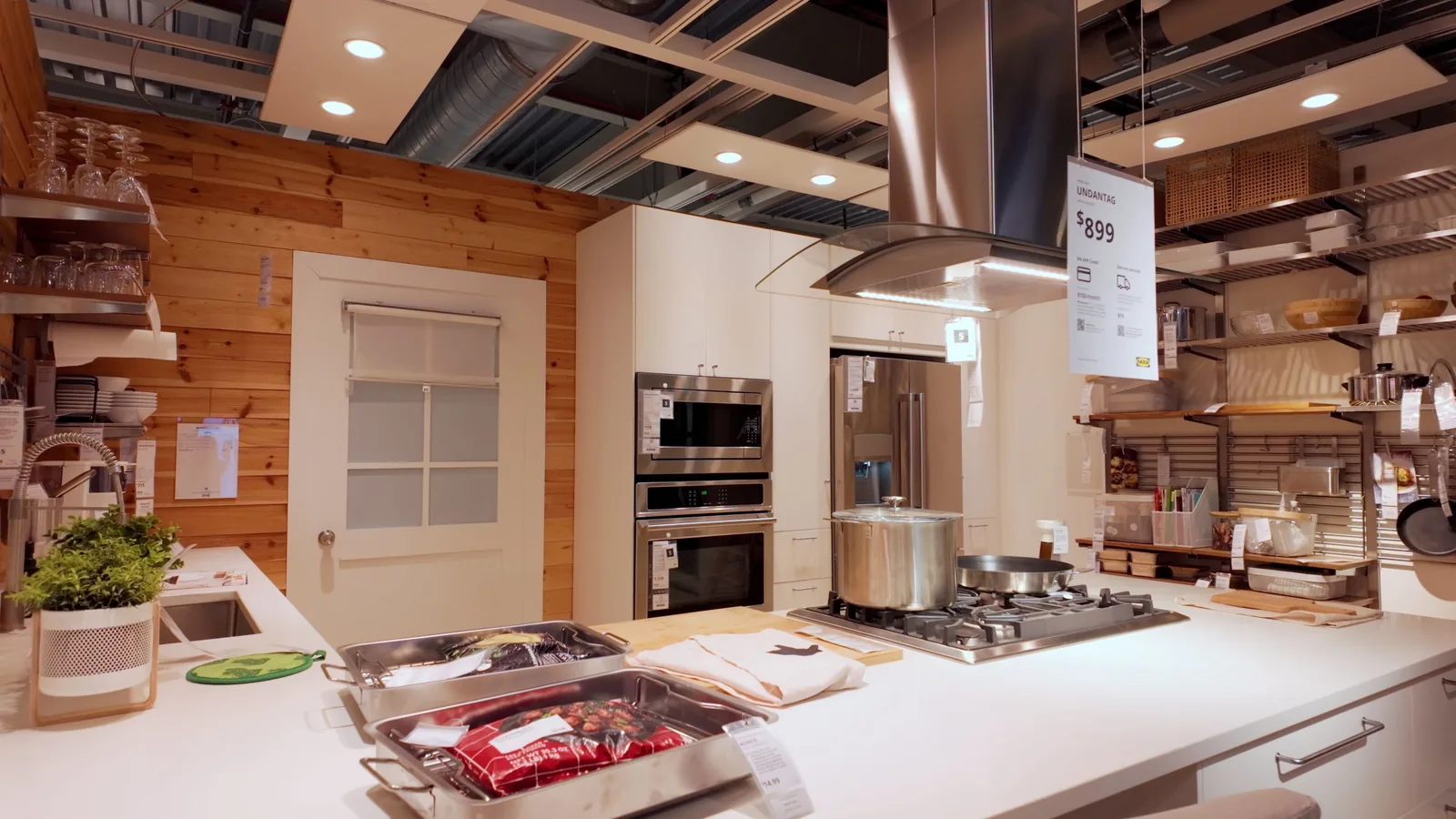
- Measure your counter space, outlets, and cabinet layouts so you know where each smart appliance will go and how it will get power.
Step-by-Step Instructions
Map Your Kitchen Workflows
Begin by walking through your kitchen and writing down every task you do regularly, from making coffee to storing leftovers. Note which tasks feel rushed, wasteful, or easy to forget. For example, you might want the lights to turn on when you enter, the oven to preheat while you prep, or a reminder when the fridge door is left open. Group these tasks by how often they happen and how important they are. This map becomes your design blueprint. A practical check is to review your list and mark which tasks truly need automation versus which are fine as they are. Over-automating can add complexity without real benefit. By understanding your actual habits first, you avoid buying devices that sound impressive but do not solve your daily problems. This step ensures your connected kitchen serves you, not the other way around.
Evaluate Your Network and Power
Smart devices rely on a stable wireless signal and adequate power. Before buying anything, test your Wi-Fi strength in every corner of the kitchen, including inside cabinets where you might place sensors. Use a smartphone app that measures signal strength, and note dead spots. If the signal is weak, consider adding a wireless access point or relocating your router. Also, count the available electrical outlets and their locations. Many smart appliances need constant power, so you may need power strips or additional outlets installed by a qualified electrician. For devices that will be built in, like a smart oven, confirm the voltage and plug type required. A practical check is to plug a temporary device into each intended spot and see if it stays connected for a full day. This check matters because a device that frequently disconnects will frustrate you and may fail to perform critical tasks.
Choose a Central Control Method
You need one main way to control your devices, whether it is a mobile app, a voice assistant, or a wall-mounted touch panel. Compare options based on your comfort and the devices you plan to use. If you prefer talking, a voice assistant might be best; if you like visual control, a tablet or panel could work. Check that the devices you want are compatible with your chosen method by looking at the product details or asking the seller. Avoid mixing multiple control systems unless you are prepared to manage them separately. A practical check is to test the control method in a store or with a demo unit, if possible. Ensure it responds quickly and is easy for everyone in your home to use. This step is crucial because a confusing control method will make your smart kitchen feel like a chore rather than a convenience. A single, reliable control hub simplifies daily use and troubleshooting.
Select Devices That Work Together
When shopping for smart appliances, look for products that clearly state they can connect with your central control method. Check the product specifications for the wireless protocols they use, such as Wi-Fi, Bluetooth, or others, and confirm your control method supports them. Prefer devices from companies that have a track record of updating their software and providing clear instructions. Read reviews that mention how well the device integrates with other systems, not just how it performs alone. A practical check is to buy one device first and test it thoroughly before purchasing more. See if it responds reliably, if its app is easy to navigate, and if it works with your voice assistant or hub. This trial approach prevents you from investing in a whole set of devices that do not cooperate. A connected kitchen only works smoothly when all parts communicate, so compatibility should be your top filter.
Plan Placement and Installation
Decide where each device will live and how it will be installed. For plug-in devices, ensure the cord reaches an outlet without stretching or using unsafe extensions. For built-in appliances, measure the cutout dimensions and check that the device fits your cabinets. Consider heat, moisture, and grease: do not place sensitive electronics directly above a stove or inside a steamy dishwasher area unless they are designed for it. Plan cable management to keep counters tidy and prevent tripping. A practical check is to create a simple floor plan with device locations, outlets, and cable routes. Then, before permanent installation, set up each device temporarily in its spot and test its connection and function. This check matters because moving a device after installation can be costly or impossible. Proper placement also ensures sensors read conditions accurately, such as a smart thermometer not being too close to the oven's heat source.
Set Up, Test, and Refine
Now it is time to set up your devices one by one, following the manufacturer's instructions. Start with your central control hub or app, then add each device. As you add them, test basic functions: turn lights on and off, preheat the oven, check the fridge temperature. Then create automations, such as a morning routine that starts the coffee maker and turns on the news. Test each automation several times to ensure it triggers correctly. A practical check is to simulate a typical day: wake up, make breakfast, leave for work, return, cook dinner, and clean up. Note any delays, failures, or confusing steps. Adjust settings or move devices as needed. This iterative process is key because real-life use reveals issues that a quick test misses. Keep a log of what you changed and why, so you can troubleshoot later.
Quick Reference
| Situation | Action | Why it helps |
|---|---|---|
| You want to add a new smart appliance to your kitchen. | First, check if the appliance is compatible with your central control method by looking at the product specifications and the control method's supported device list. Then, test the appliance in a temporary spot before permanent installation to ensure it connects and responds reliably. Finally, add it to your control app and create any desired automations. | Checking compatibility and testing first prevents frustration and returns, and ensures the device will integrate smoothly with your existing setup. |
| Your smart devices are not responding or are slow to react. | Check your Wi-Fi signal strength in the area where the devices are located. If weak, move your router or add a wireless access point. Also, restart your router and the affected devices. If the problem persists, check for software updates for the devices and your control app. Finally, review if any automations are conflicting or if too many devices are connected at once. | Most connectivity issues stem from weak signals or outdated software, and resolving these often restores quick and reliable performance. |
| You want to automate a routine, like morning coffee and news. | In your control app, create a new automation or scene. Choose the trigger (such as a time or voice command) and then add actions: turn on the smart plug for the coffee maker, turn on the smart speaker, and set the lights to a warm brightness. Test the automation several times and adjust the timing or actions as needed. | Testing ensures the sequence works correctly and that devices respond in the right order, making your routine smooth and dependable. |
Common Issues
- Devices frequently disconnect from the network.: Strengthen your Wi-Fi signal by moving your router to a central location, adding a mesh node or access point, or using a wired connection for stationary devices. Also, check for interference from other electronics like microwaves. Update device firmware and your router's software. If a specific device still drops, try connecting it to a different network band if your router supports it.
- The control app is confusing or hard to navigate.: Take time to explore the app's settings and customize the dashboard to show only the devices you use most. Many apps allow you to rename devices and group them by room. If the app remains difficult, consider switching to a different control method that better suits your needs, but first check if your devices are compatible with the new method. You can also look for online tutorials specific to your app.
- Automations trigger at the wrong time or not at all.: Review the automation's trigger conditions and ensure they are set correctly, such as the right time or sensor state. Check that all devices in the automation are online and responsive. Sometimes, conflicting automations can cause issues, so disable others temporarily to test. Also, verify that your phone or hub has the necessary permissions and is connected to the internet. Adjust and re-test until reliable.
Advanced Tips
- Use local control where possible: some systems can run automations without sending data to the cloud, which means they keep working if your internet goes down. Check if your hub supports local processing.
- Group devices by room or function to create scenes that control multiple items with one command, like a cooking scene that dims lights and turns on the exhaust fan.
- Monitor energy usage with smart plugs that report power consumption, helping you identify which appliances use the most electricity and adjust habits accordingly.
Final Checklist
- Verify that all smart devices are connected to your network and respond to commands from your central control method.
- Test each automation and scene at least three times to ensure they trigger correctly and complete all actions.
- Ensure manual controls are still accessible for all devices in case of network or power failure.
- Document your setup, including device names, network details, and automation logic, and store it in a safe place for future reference.
FAQ
Do I need a smart hub to have a connected kitchen?
Not necessarily. Many smart appliances can connect directly to your Wi-Fi and be controlled through individual apps or a voice assistant. However, a hub can unify control and enable more complex automations. Check the specifications of the devices you plan to buy to see if they require a hub or if they work independently.
What if my internet goes down?
Most smart devices rely on an internet connection for remote control and some automations. If your internet goes down, you may lose voice control and app access, but many devices will still function manually. Some systems support local control, so automations continue to work. Check your device manuals for offline capabilities.
How do I keep my smart kitchen secure?
Use strong, unique passwords for your Wi-Fi network and each device account. Enable two-factor authentication if available. Keep device firmware and your router's software up to date. Avoid using default passwords. Regularly check for security updates from manufacturers. For more guidance, consult your device documentation and your internet provider's security recommendations.